

Overview
A template is a video you design once in HeyGen Studio and reuse by swapping in different values. You mark the parts you want to change per video, the script, the voice, the avatar, the background, as variables, give each one a name, then use the API to fill those variables and generate a new video for every set of values. One idea ties Studio and the API together: the name you give a variable in Studio is the exact key you send in the API. Name a variablename in the editor, and you fill it with "name": { ... } in your request.
This guide walks the full loop: build the template in Studio, then drive it from the API.
For the complete variable-type schema (text, image, video, audio, voice, character), asset inputs, scenes, and every generate option, see the Studio Template reference.
Prerequisites
- A HeyGen account with Studio access (app.heygen.com).
- An API key.
Part 1 — Build the template in Studio
You’ll build a one-scene welcome video with four variables: the viewer’s name (text), the voiceover, the presenter (avatar), and the background.1
Open the template editor
In HeyGen Studio, create a new video (or open an existing one) and lay out your avatar, script, and background as usual. This layout is what every generated video will share.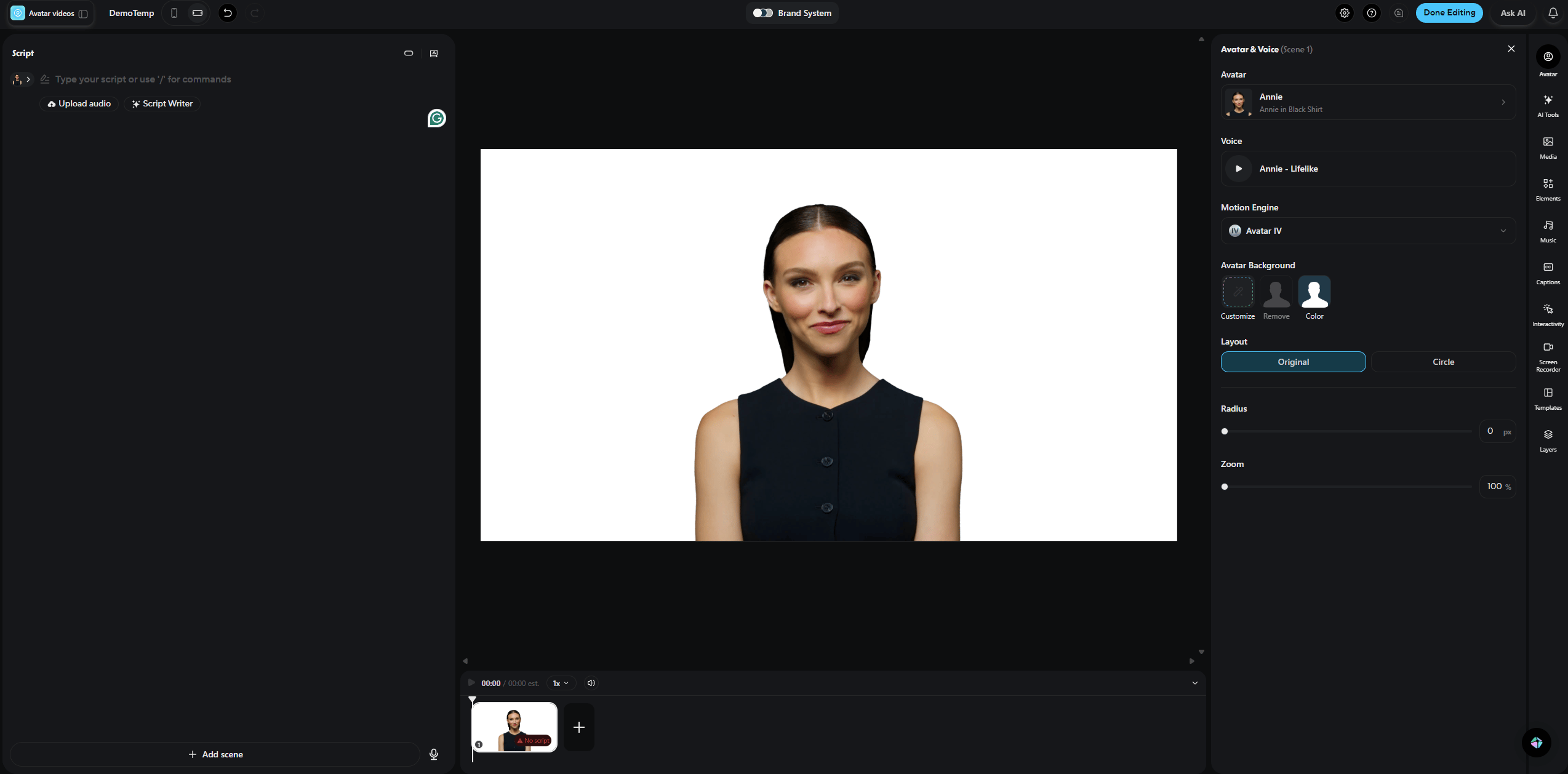
2
Turn script text into a variable
In the Script pane, wrap any word you want to change per video in double braces. Here the script is 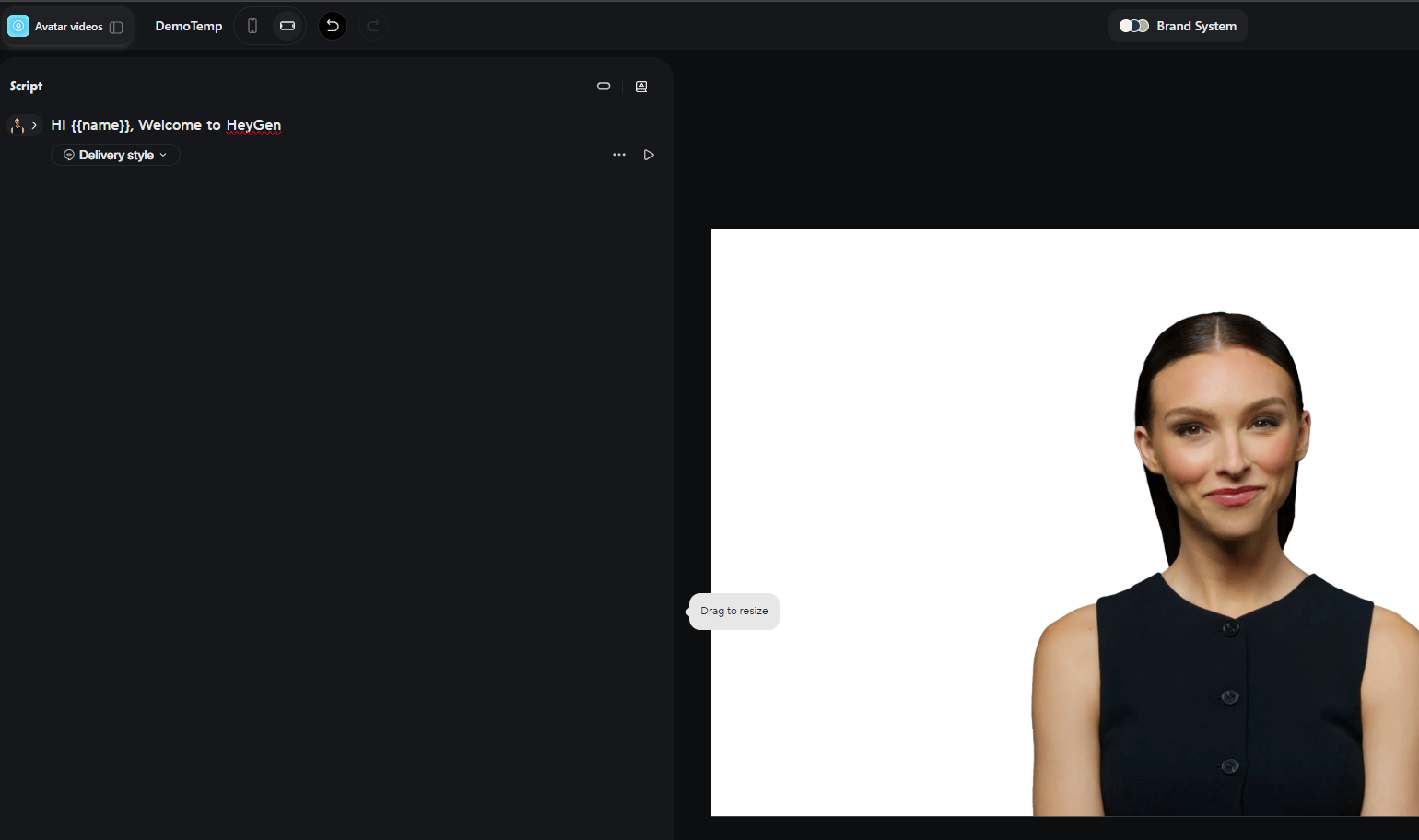
Hi {{name}}, Welcome to HeyGen, so name becomes a text variable you fill at generate time.3
Make the voice a variable
Open the three-dots menu on the script and choose API Variable. Name it 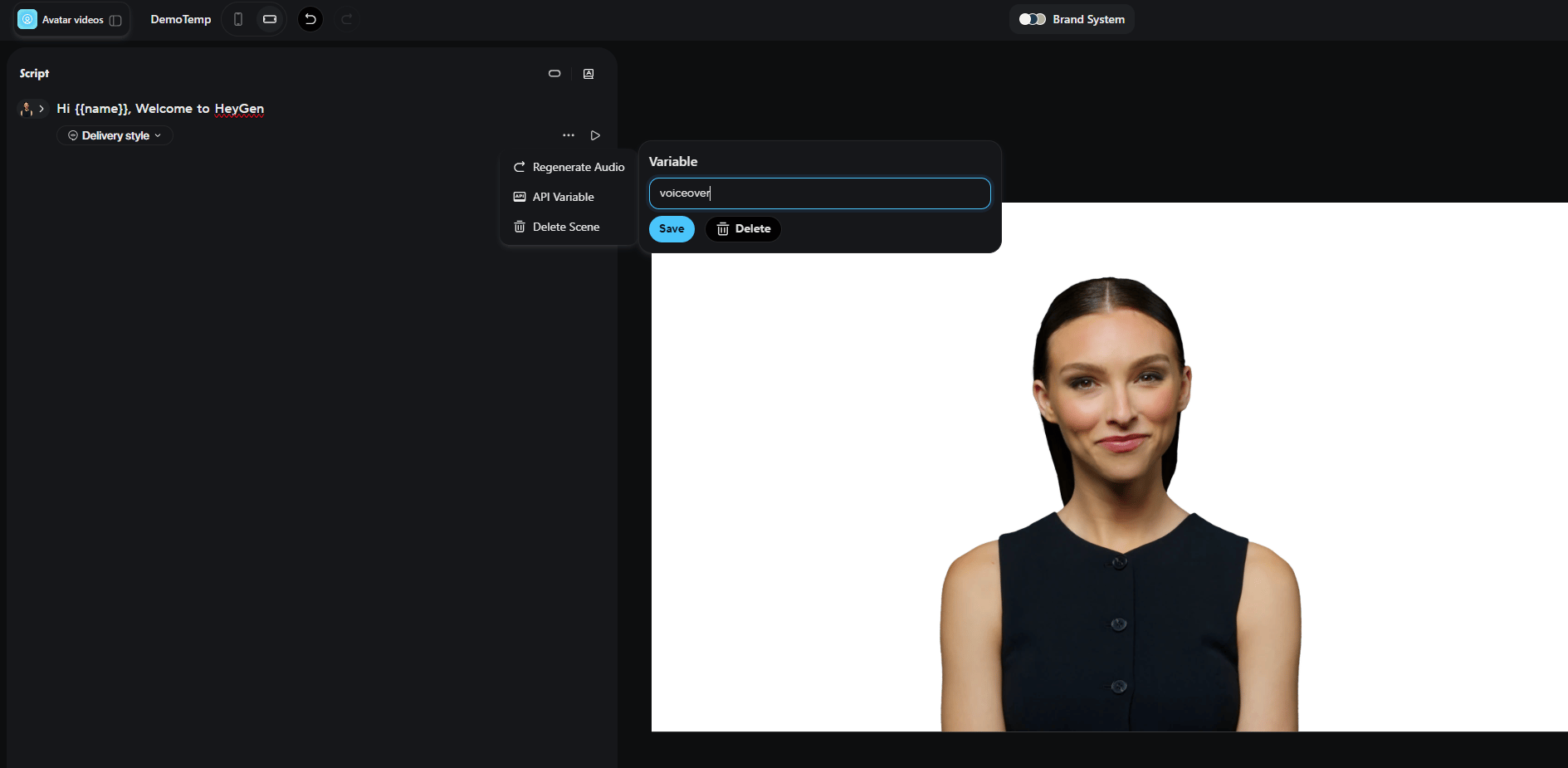
voiceover and click Save. The voice for the scene can now be set per request.4
Make the avatar a variable
Select the avatar on the canvas, then click the API button in the hover toolbar. Name it 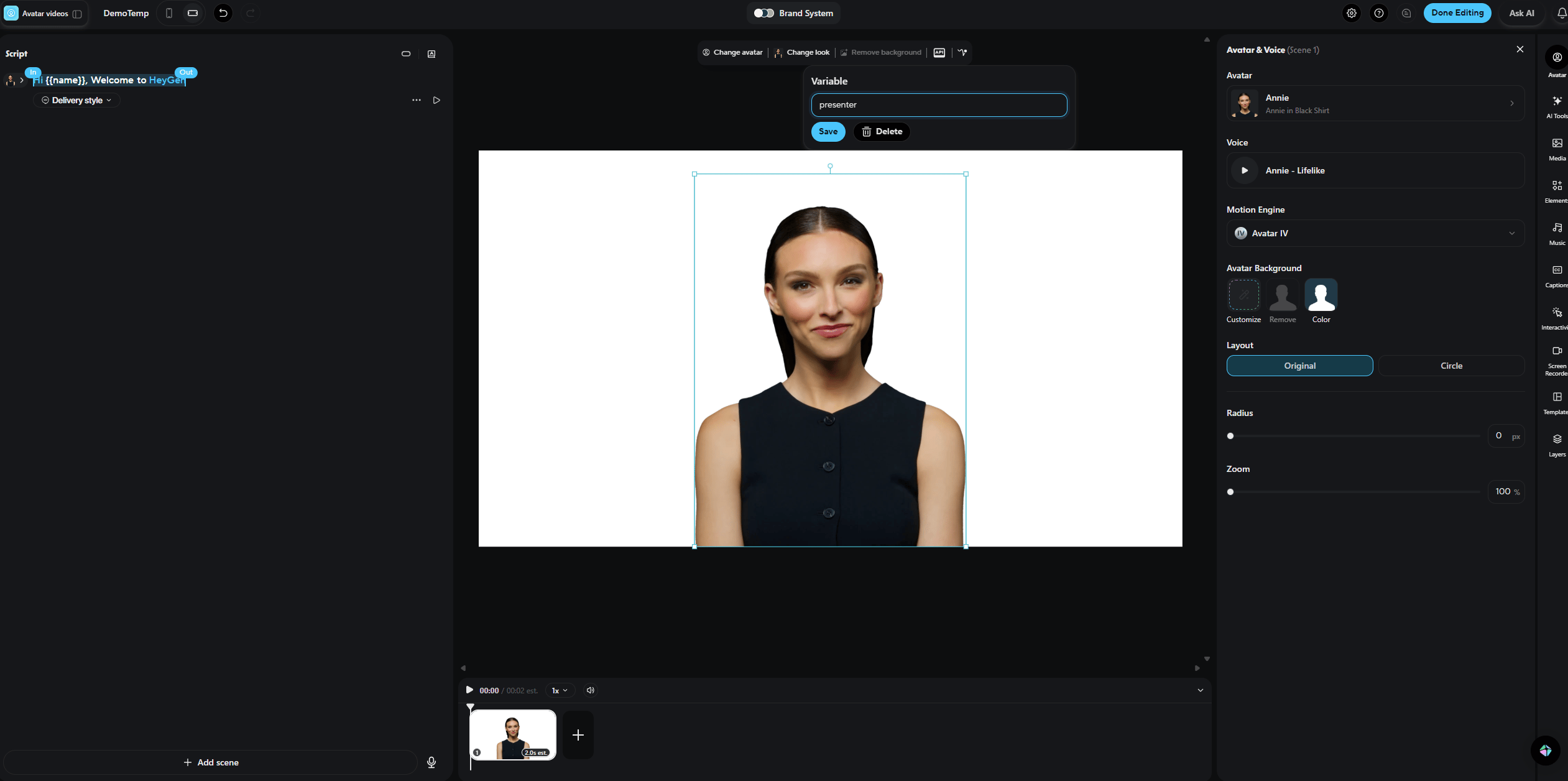
presenter and Save. You can now swap the avatar per video.5
Make the background a variable
Click the background directly (not the avatar), then click the API button in its toolbar. Name it 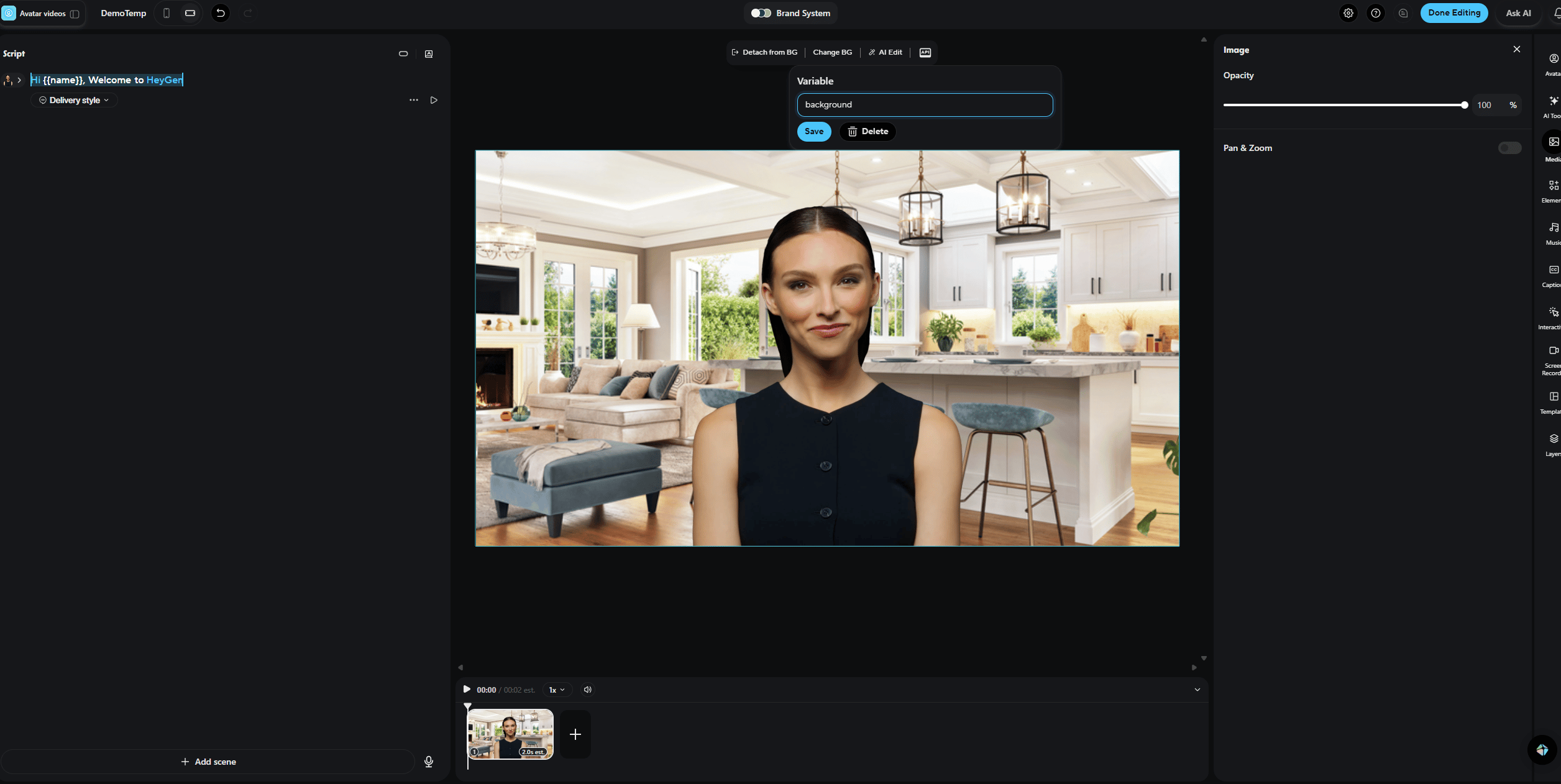
background and Save. The scene background can now be set per request.6
Save the template
Click Done Editing. Your template is now API-ready and will appear in the templates list.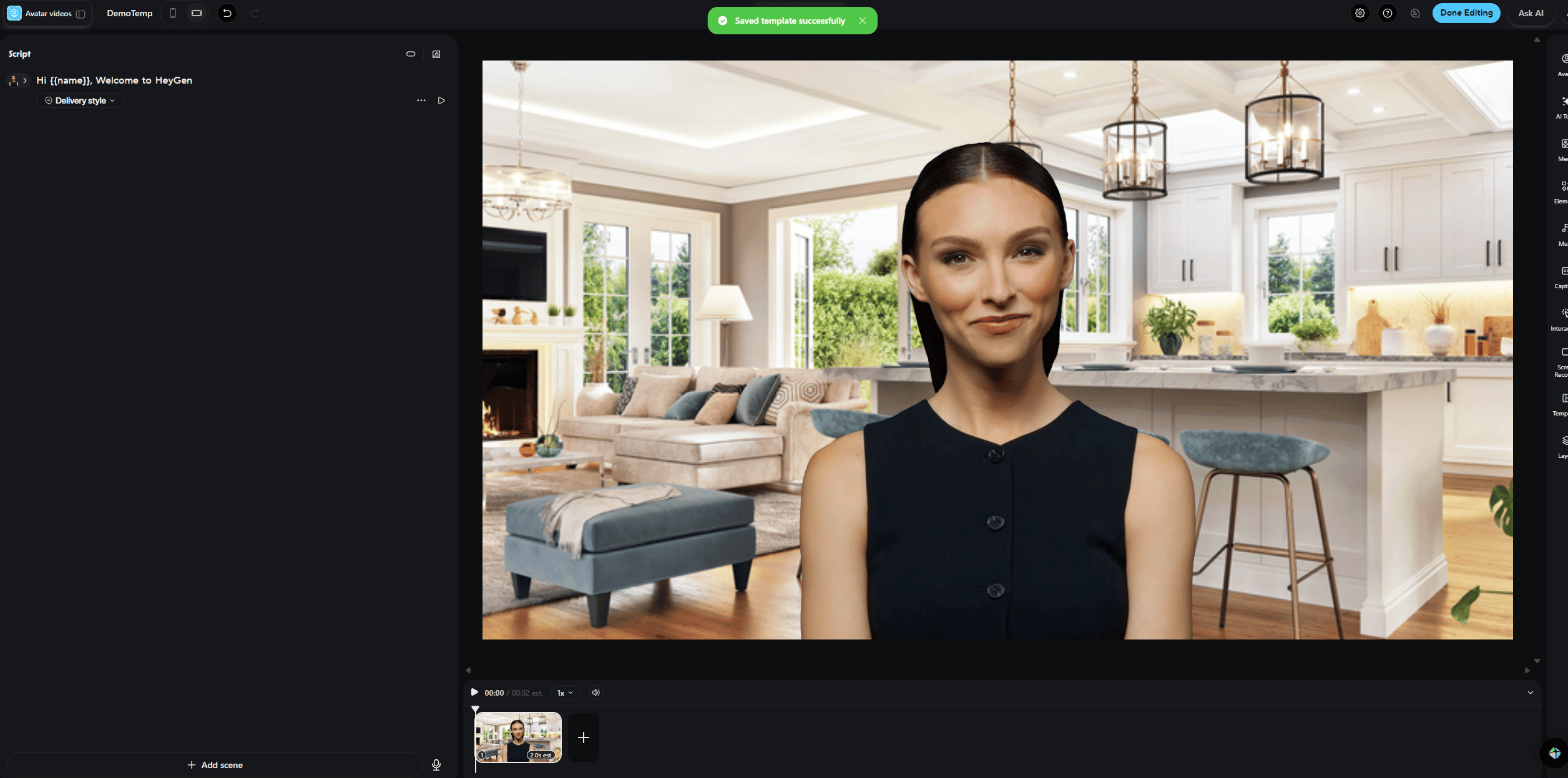
name, voiceover, presenter, and background. Those names are exactly the keys you use next.
Part 2 — Generate videos from the API
The flow is four calls: find the template, read its variables, fill them, then poll for the finished video.1
Find your template
List the API-ready templates in your workspace and grab the
id of the one you built.Response
2
Read the variable schema
Fetch the template to see the variables you named in Studio, with their types and current defaults.
Response
3
Fill the variables and generate
Send the variables keyed by the names you set in Studio. Here we personalize
name to “Alex” and set a new background.Response
Character, voice, image, video and audio variables you omit keep their template values. Always send every text variable: an omitted text variable is not filled with its default, and its placeholder name is spoken instead. Add
"test": true to render a lower-quality test video with no credit charge while you wire things up.4
Poll for the finished video
Generation is asynchronous. Poll the video by the
id returned above until its status is completed, then read video_url.Response
Troubleshooting
My template isn't in the list
My template isn't in the list
Only templates that have at least one variable defined appear in
GET /v3/templates, and the detail endpoint supports templates built in the current editor (draft version 4). Make sure you marked and saved at least one variable in Studio.I get an unknown-variable error
I get an unknown-variable error
The keys in your
variables object must match the variable names you set in Studio exactly (case-sensitive). Read GET /v3/templates/{template_id} to confirm the names.A text variable comes back empty
A text variable comes back empty
A
text variable can be empty in the schema (an unfilled default), but it must be non-empty when you generate.Next steps
Studio Template reference
Every variable type, asset input, scenes, and generate options.
Webhooks
Get notified when a video finishes instead of polling.