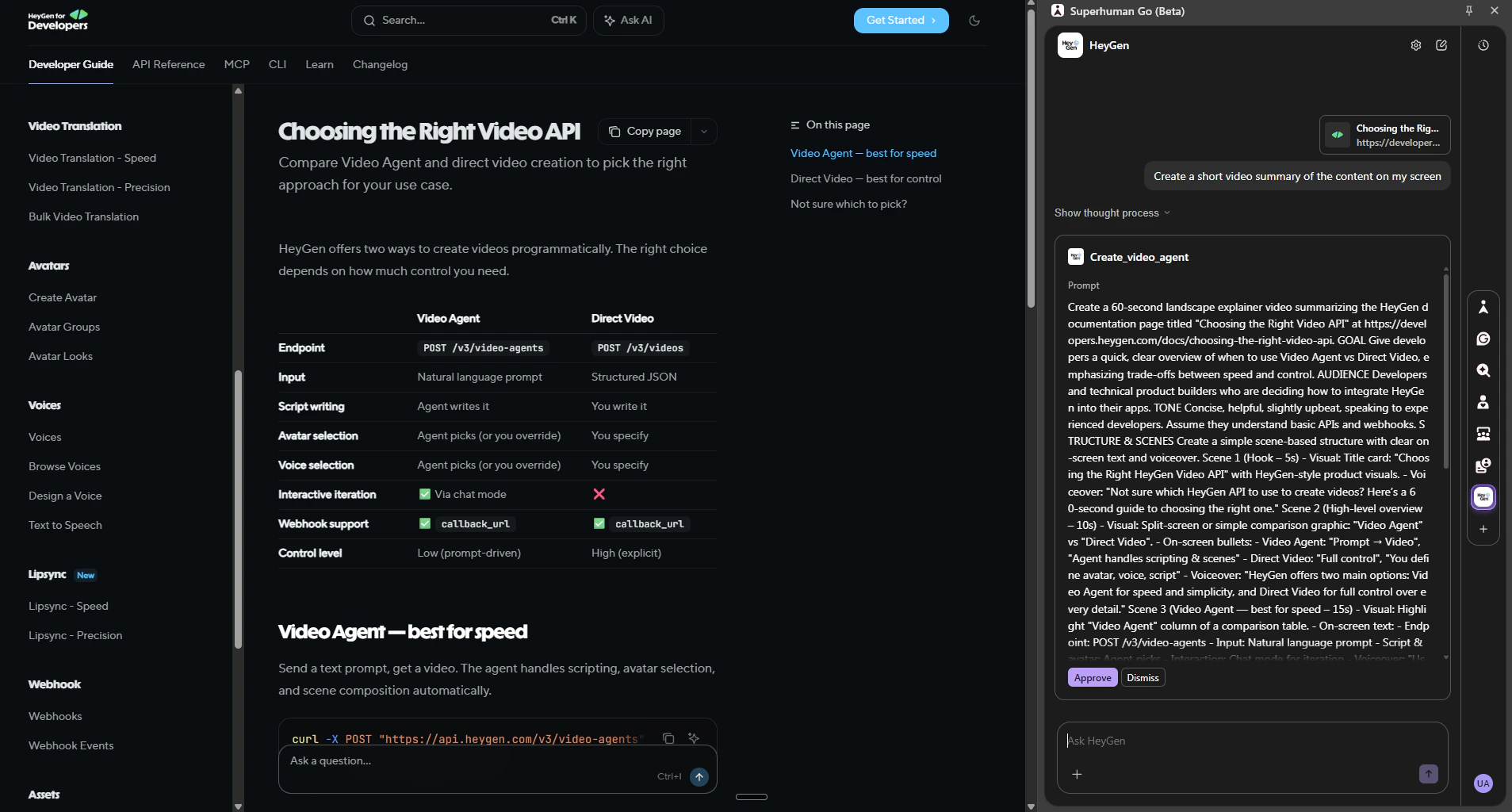

If you spend most of your day inside the browser — researching, editing, summarising — there’s now a way to turn whatever’s on your screen into a HeyGen video without context-switching. Superhuman Go (the agent platform from Grammarly) connects directly to HeyGen via MCP + OAuth, so you can prompt it from anywhere on the web.Documentation Index
Fetch the complete documentation index at: https://heygen-1fa696a7.mintlify.app/llms.txt
Use this file to discover all available pages before exploring further.
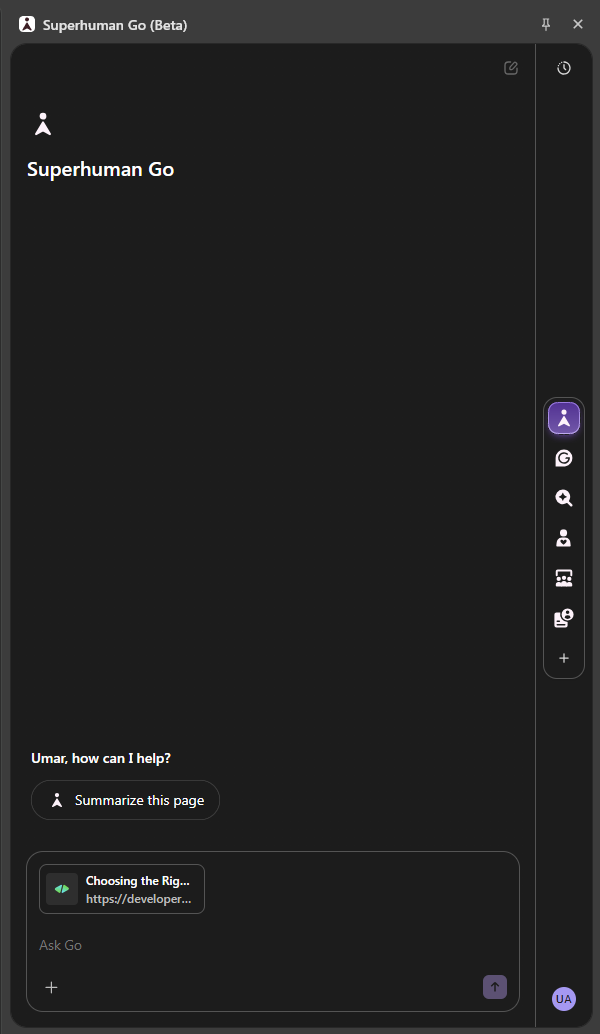
Step 1: Open Superhuman Go
Make sure the Grammarly browser extension is installed, then open the Superhuman Go side panel. You’ll see your default agents in the sidebar (Grammarly, Calendar, Gmail, etc.).
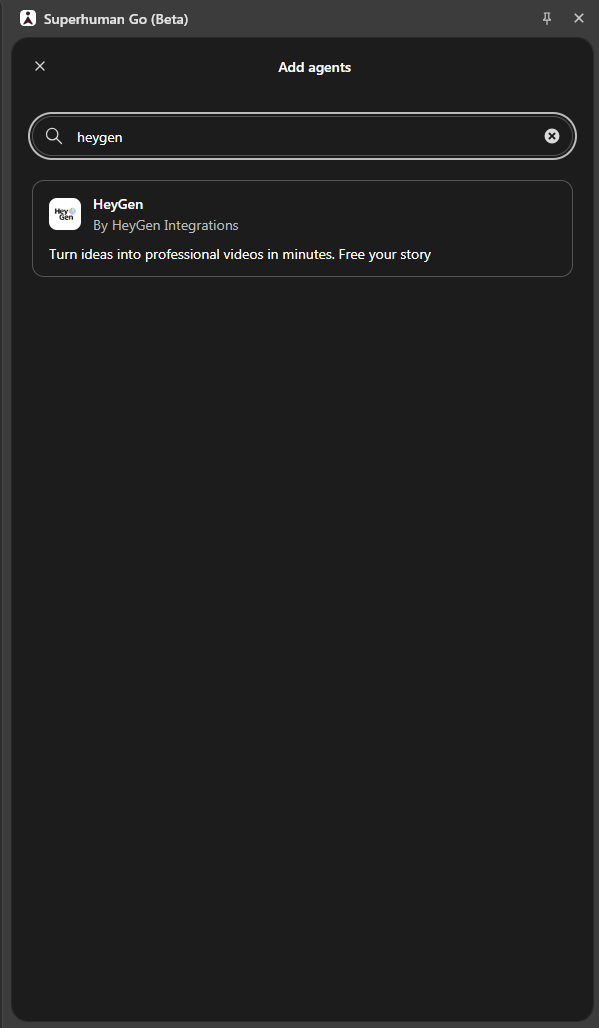
Step 2: Find the HeyGen agent
Click the + (Add agents) button in the sidebar. In the search field, typeheygen — the HeyGen agent (by HeyGen Integrations) will show up.

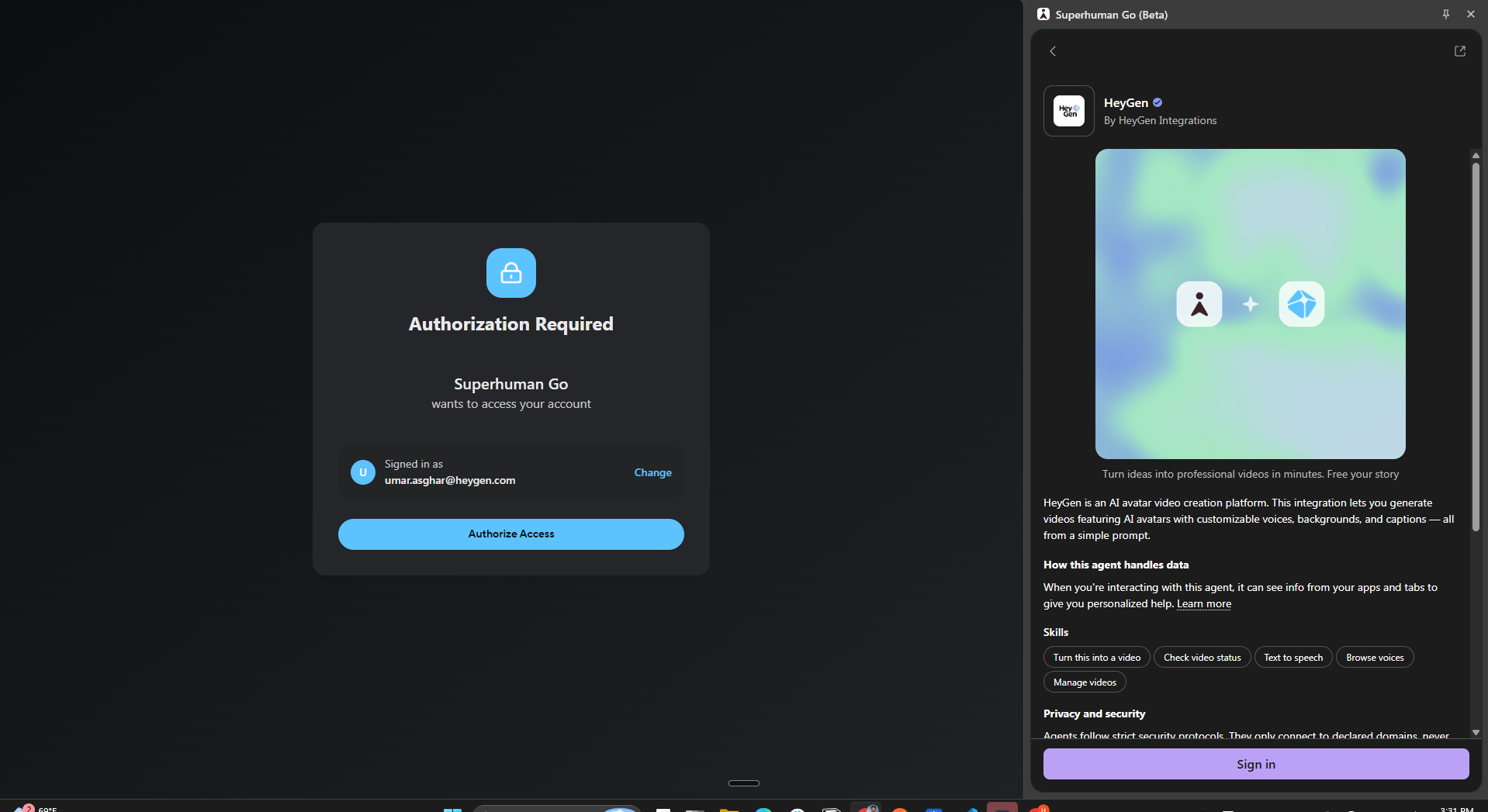
Step 3: Connect and authorize
Click on the HeyGen agent to see its skills (Turn this into a video, Check video status, Text to speech, Browse voices, Manage videos) and privacy details. Hit Sign in to start the OAuth flow. Superhuman Go will ask you to authorize access to your HeyGen account. Confirm, and once authentication completes you’ll see the Successfully signed in confirmation. If you don’t already have a HeyGen account, you can create one during this step (free tier available; paid plans unlock longer videos and more avatar options).
Step 4: HeyGen agent is now active
After authorizing, the HeyGen agent appears in your Superhuman Go sidebar with its own chat surface. You can now ask it directly: “Ask HeyGen”.
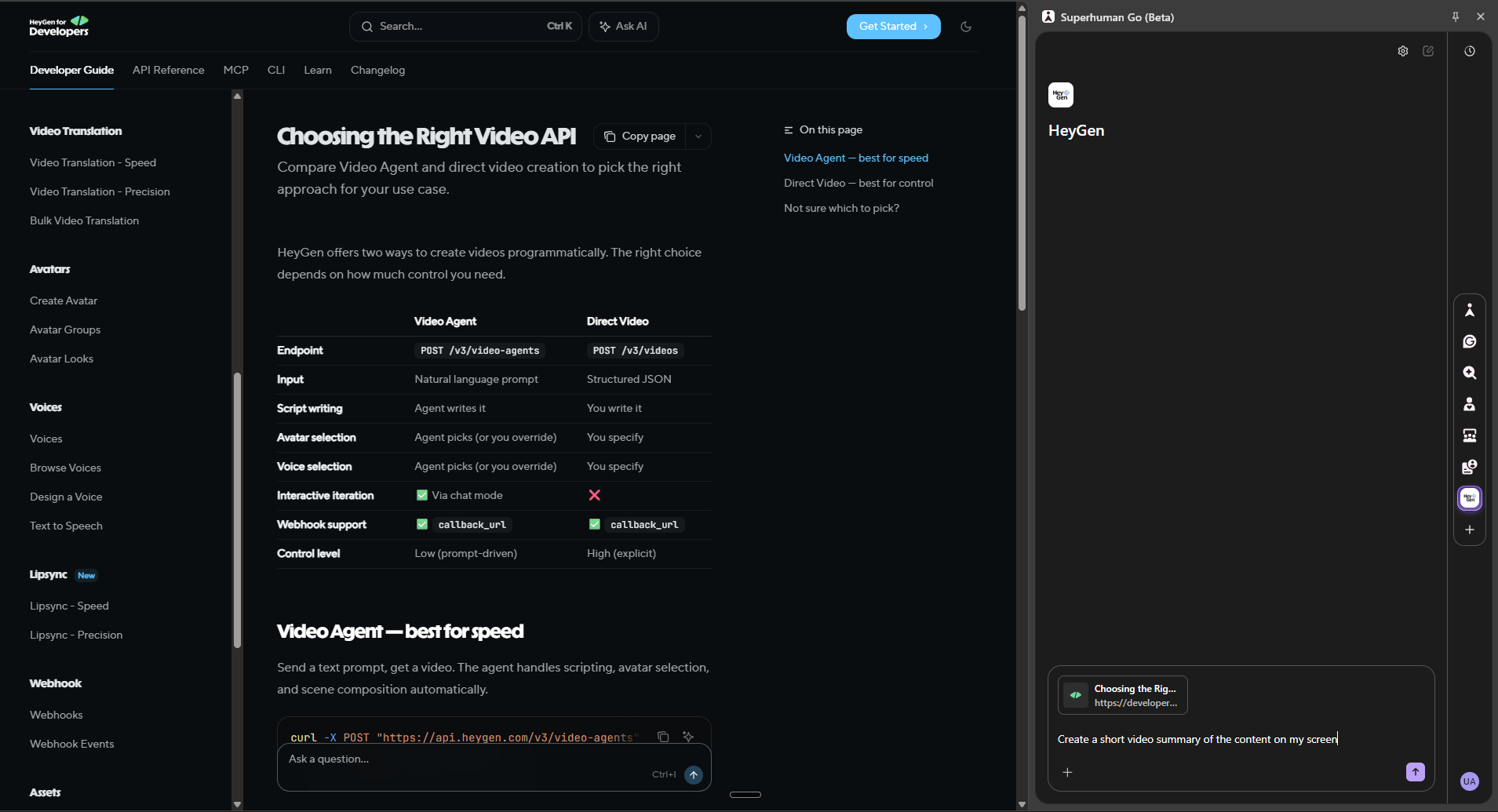
Step 5: Generate a video from any page
Browse to any page you want to turn into a video — a doc, an article, your own work. In the HeyGen panel, prompt it naturally. For example, while looking at one of HeyGen’s own developer docs:“Create a short video summary of the content on my screen.”The agent will read your screen context, build an optimized prompt, and call the HeyGen Video Agent. You’ll see the
Create_video_agent step fire, and a few moments later the video appears with preview frames and quick options to regenerate (vertical, subtitled, alternative tone).
The final rendered video plays directly inside the Superhuman panel, with links to Watch full video and Open in HeyGen for sharing or editing further.

Beyond a single page — chaining tools
Because Superhuman Go is an agent platform, HeyGen plays well with the other tools you’ve connected. For example, if you also have Granola connected, you can ask the agent to pull your meeting notes and turn them into a HeyGen video in a single prompt:“Can you get my notes from Granola and create a HeyGen video summary of them?”The agent will fetch the latest notes from Granola, write a script, and kick off the HeyGen Video Agent — all in one chat turn.
What’s available
The HeyGen agent in Superhuman Go currently supports:- HeyGenAssistant — default chat skill; reads your screen / editor / selected text and creates videos, checks status, generates speech audio
- QuickVideoFromScreen — one-shot 60-second landscape video from your current screen
- CheckVideoStatus — polls a session and fetches the final video when ready
- TextToSpeech — generates speech audio (≤1000 chars, Starfish engine)
- BrowseVoices — lists and filters HeyGen voices
- ManageVideos — lists, searches, and deletes videos in your HeyGen library